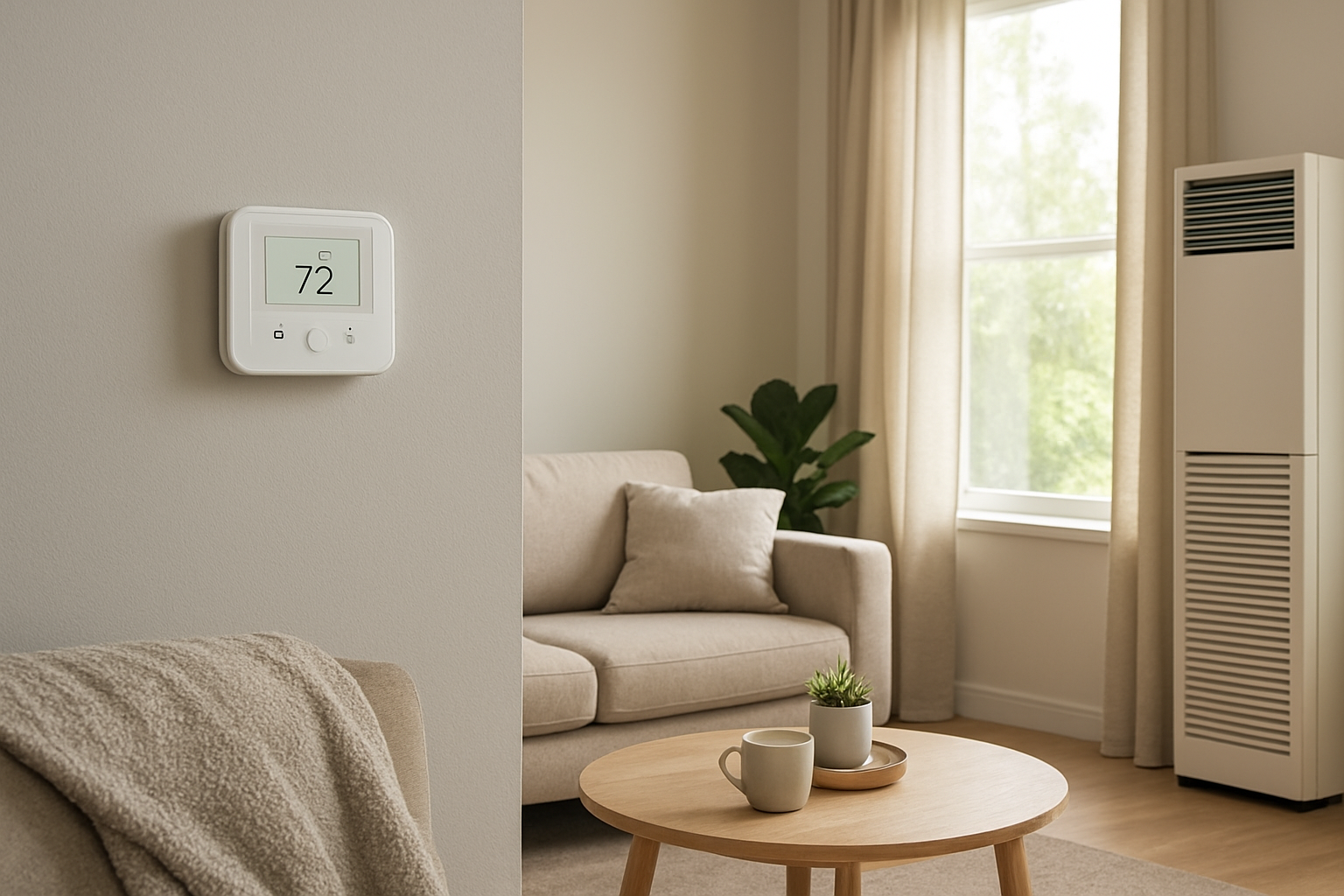
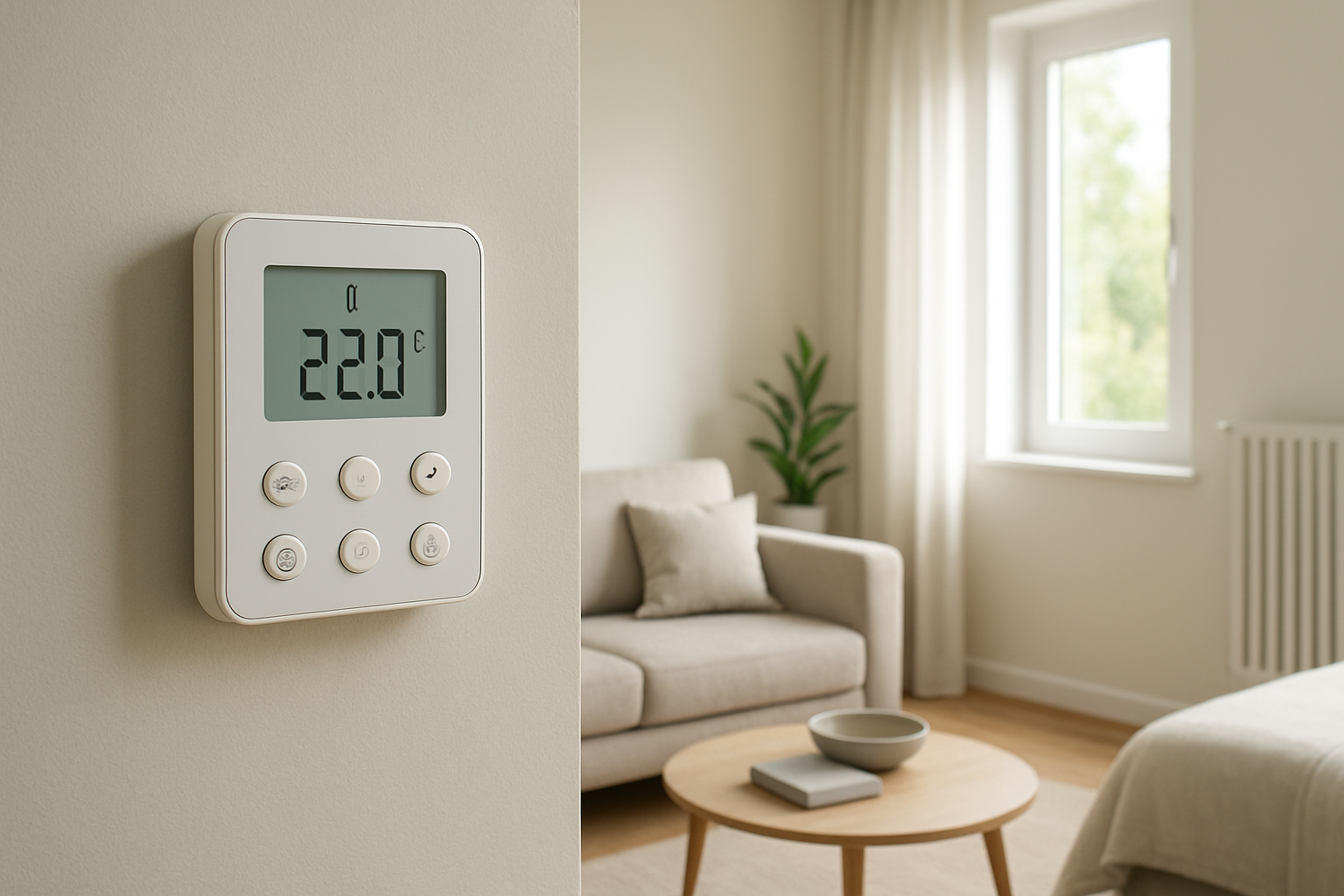
Diagnose and fix wireless thermostats that keep losing connection due to signal interference or power instability, including troubleshooting steps for restoring stable operation.
Thermostat Keeps Losing Connection? Signal Interference
Quick Answer
If your thermostat keeps dropping offline, the most likely cause is unstable power to the thermostat or interrupted wireless signal between the thermostat, router, and HVAC control board. First check: when it disconnects, see whether the thermostat screen stays fully on (signal issue) or goes blank/reboots (power issue). That single observation separates most diagnoses.
Identify the Comfort Pattern First
Connection loss is only useful diagnostically when you tie it to a comfort symptom. Use the patterns below to pinpoint whether you are dealing with wireless interruption, power instability, or both.
When it happens: Does it drop connection at predictable times (evenings when streaming, mornings when heating starts, afternoons during peak cooling)? Time-of-day consistency points to Wi‑Fi congestion or electrical load changes.
Weather link: Do disconnects increase during very hot or very cold weather when the system runs longer? That points to power instability triggered by extended equipment operation (transformer or control board load) rather than pure Wi‑Fi.
System running vs off: If connection drops primarily when heat/AC turns on, suspect a power dip or electrical noise from the HVAC equipment. If it drops when the system is idle, suspect router/mesh placement, interference, or internet service instability.
Constant vs intermittent: Random brief outages (minutes) often match Wi‑Fi roaming or weak signal. Repeated reboots or longer outages often match power interruptions or a failing thermostat power supply path.
Where it happens: If remote sensors, wireless indoor heads, or a smart thermostat in a hallway all lose connection but phones work fine in the same spot, suspect a specific 2.4 GHz path issue or a router band-steering behavior rather than overall internet loss.
Door open vs closed: If closing a nearby metal door, mechanical-room door, or moving a pocket door changes stability, that suggests signal obstruction or reflection rather than power.
Vertical differences in comfort: After a disconnect, do you notice warmer upstairs or colder downstairs than normal? That indicates the HVAC is not being controlled reliably, allowing normal stratification to grow unchecked.
Humidity perception: In cooling season, a disconnected thermostat can reduce run time or stop cycles entirely. If the air starts feeling clammy while temperature drifts only slightly, that is consistent with shortened cooling cycles or missed calls caused by dropouts.
Airflow strength: If airflow stops completely during a disconnect event, control is being interrupted. If airflow continues but temperature drifts, it may be running in a default mode or failing to stage properly due to communication loss.
What This Usually Means Physically
A smart thermostat that loses connection affects comfort in one of two physical ways:
Control interruption changes heat removal or heat addition: If the thermostat cannot reliably send calls for heating/cooling or receive equipment status, the system may short-cycle, fail to start, or run at the wrong time. The house then drifts with the building’s normal heat gain/loss. On hot days, solar gain and infiltration raise indoor temperature quickly; on cold days, envelope heat loss dominates. Disconnects make those natural forces more noticeable.
Sensor and staging errors amplify stratification and humidity: When a thermostat is offline or rebooting, it may stop averaging remote sensors, stop using occupancy features correctly, or fail to control multi-stage equipment as intended. That creates longer periods where upper floors warm up (air stratification) or where cooling run time becomes too short to manage indoor humidity load.
The key diagnostic point: true Wi‑Fi issues typically do not turn the thermostat screen off. Power instability often does. Comfort problems occur because the thermostat is the gatekeeper for run time, staging, and consistency.
Most Probable Causes (Ranked)
Weak 2.4 GHz signal or poor access point placement: Disconnects happen when you move between mesh nodes, close doors, or step between thermostat and router. Phones may still look fine because they use stronger radios and can switch bands more gracefully.
Thermostat power instability from HVAC 24V supply: The thermostat screen blanks, reboots, or gets stuck at the startup logo, often when heating/cooling starts. This points to a sagging transformer, loose low-voltage connections, or a control board issue.
Electrical noise or voltage dip when equipment starts: Connection drops exactly at blower start, compressor start, or electric heat staging. This can disrupt Wi‑Fi briefly or cause a thermostat brownout, especially with long thermostat wire runs.
Router band steering, firmware, or DHCP lease problems: The thermostat repeatedly reconnects, asks for credentials again, or shows frequent Wi‑Fi reconnect events while other devices seem stable. Often worse after router updates or ISP modem swaps.
Interference near the thermostat location: Connection loss increases when a nearby microwave runs, when Bluetooth-heavy areas are active, or when the thermostat is mounted near metal framing, a duct chase, an electrical panel, or a masonry wall that attenuates signal.
Overloaded Wi‑Fi environment: Peaks during evenings, gaming/streaming, or when many smart devices are active. The thermostat drops because it is a low-priority, low-power client.
Failing thermostat hardware: Reboots unrelated to HVAC cycles or Wi‑Fi activity, increasing in frequency over weeks. Screen may freeze or responsiveness degrades.
How to Confirm the Cause Yourself
These checks are observation-based and do not require opening electrical panels.
Screen behavior test: Next time it disconnects, watch the thermostat screen. If it goes blank, dims abnormally, or reboots, prioritize power instability. If the screen stays normal but shows offline/no network, prioritize Wi‑Fi path or router behavior.
HVAC start correlation: Note whether disconnects occur within 5–30 seconds of the system turning on. If yes, suspect a voltage dip or electrical noise tied to blower/compressor start.
Internet vs Wi‑Fi vs thermostat-only: When the thermostat is offline, check a phone on Wi‑Fi in the same hallway. If the phone has strong signal and stable internet while the thermostat is offline, the issue is likely thermostat Wi‑Fi compatibility, band steering, or a weak 2.4 GHz path specific to that device.
Distance and obstruction test: Temporarily open doors between router and thermostat and see if stability improves over the next day. If you have a mesh system, place a node closer (same floor, fewer walls) and observe whether dropouts stop.
Humidity and temperature drift check: During a dropout, observe whether indoor temperature drifts faster than normal and whether the air feels noticeably more humid (cooling season). Fast drift suggests the system is not running when it should, which points away from a harmless cloud/app issue and toward real control interruption.
Run-time consistency: If your thermostat provides run-time history, look for gaps that match the disconnect times. Gaps on extreme weather days point to comfort-impacting interruptions (not just app display delays).
Location sensitivity test: If you can safely do so, stand near the thermostat with a phone Wi‑Fi analyzer app and watch 2.4 GHz signal strength while you close the nearest door or walk away. Big swings indicate marginal signal, which causes intermittent reconnecting.
Normal Behavior vs Real Problem
Normal: Brief app delays where the thermostat still controls heating/cooling locally. The thermostat screen stays responsive, and indoor temperature remains stable. One short reconnection after a router reboot is expected.
Real problem: The thermostat reboots, goes blank, or repeatedly shows offline several times per day. Comfort drifts by more than 2–3°F from setpoint, humidity rises noticeably in cooling season, or you notice missed heating/cooling cycles. Any pattern tied to equipment starting is a strong indicator of power or electrical noise issues.
When Professional Service Is Needed
Power-related signs: Screen blanking/rebooting, disconnects tied to HVAC cycling, or burning/electrical odor near equipment. These require a technician to verify stable 24V power under load, inspect transformer output, and check control board and low-voltage wiring integrity.
Comfort impact threshold: If disconnects cause repeated missed cycles, temperature swings greater than 3°F, or indoor humidity that becomes persistently clammy, schedule service. Comfort instability indicates control is being interrupted, not just the app.
System performance decline: If the system short-cycles, fails to stage properly, or the blower/compressor behavior changes around the same time disconnects began, professional diagnostics are warranted.
Persistent connectivity after Wi‑Fi improvements: If you improve Wi‑Fi coverage (closer node/router, stable 2.4 GHz availability) and disconnects continue, the remaining likely causes are thermostat hardware, HVAC power delivery, or router DHCP/band steering behavior that needs targeted configuration.
How to Prevent This in the Future
Stabilize the 2.4 GHz path: Keep a clear signal path to the thermostat (fewer walls, avoid metal obstructions). If using mesh, ensure a node is on the same floor within a reasonable distance; avoid placing nodes in mechanical rooms or behind ductwork.
Avoid mounting-adjacent interference: If the thermostat is on a wall backing to an electrical panel, duct chase, or masonry, relocation can improve reliability more than router upgrades because attenuation is local and severe.
Reduce roaming confusion: Ensure the thermostat stays on a stable band and access point. In some homes, separating 2.4 GHz and 5 GHz network names or adjusting mesh placement prevents frequent handoffs.
Protect thermostat power quality: Have low-voltage wiring secured and strain-relieved during service visits. Loose R/C connections and marginal transformers commonly create intermittent resets that look like Wi‑Fi problems.
Keep router firmware stable: Avoid frequent automated firmware changes if they coincide with new dropouts. If the issue begins immediately after a router/ISP modem change, treat that as a major diagnostic clue.
Related Home Comfort Symptoms
AC runs but house feels humid due to short cycling or missed calls during disconnect events
Temperature swings between floors after the system stops running consistently
System won’t start on schedule because the thermostat is rebooting or offline
Blower runs unexpectedly from control glitches during power instability
Remote sensors stop updating causing one room to overheat or overcool
Conclusion
A thermostat that keeps losing connection is most often either a weak/interrupted wireless path or unstable thermostat power from the 24V HVAC control circuit. Use the screen behavior during a dropout as the first separator: screen stays on points to Wi‑Fi; screen blanks/reboots points to power. If disconnects correlate with HVAC starting or cause noticeable temperature/humidity drift, treat it as a control reliability problem and schedule professional diagnosis.
Frequently Asked Questions
Can signal interference really change indoor comfort, or is it just the app?
If the thermostat stays powered and continues controlling the HVAC locally, comfort usually stays stable and only the app looks disconnected. Comfort changes happen when the thermostat is rebooting, failing to send calls reliably, or losing communication needed for staging/sensor averaging. If temperature or humidity drifts during disconnects, it is affecting control, not just the display.
How do I tell the difference between Wi‑Fi dropouts and thermostat power problems?
Watch the thermostat during the event. If the screen goes blank, restarts, or becomes unresponsive, that is almost always a power instability issue. If the screen remains normal and responsive but shows offline/no network, that is usually a Wi‑Fi path, router, or ISP-related connectivity issue.
Why does it disconnect more when the heat or AC turns on?
Equipment start-up can cause a brief voltage dip or electrical noise that affects either the thermostat’s low-voltage power or its wireless radio stability. If disconnects repeatedly occur right at blower/compressor start, prioritize diagnosis of 24V stability, wiring connections, and any shared electrical issues affecting the control circuit.
Will moving the router or adding a mesh node fix it?
If the thermostat screen never blanks and the only issue is offline status, improving the 2.4 GHz signal near the thermostat often solves it. The most convincing confirmation is a clear reduction or elimination of dropouts after placing a node closer on the same floor with fewer walls and metal obstructions in between.
Is it normal for a thermostat to go offline occasionally?
An occasional brief reconnect after a router reboot or internet outage is normal. Multiple disconnects per day, repeated reboots, or any disconnect that causes missed heating/cooling cycles, noticeable humidity rise, or temperature swings beyond 2–3°F is not normal and should be diagnosed.
Need a complete overview? Visit the full troubleshooting guide here: Read the full guide for more causes and fixes.
After all the frantic button-pressing and the thermostat’s dramatic “no signal” mood swings, things settle into a steadier rhythm. When the connection stops dropping, the house feels less like a waiting room and more like home again.
It’s a small daily annoyance that can quietly take over an entire day, yet the fix is just as clean and uneventful as it should be. By the time it holds steady, you’ll notice the silence first—and then, weirdly, how good that feels.